User Interface
Please see the Demo video for a quick overview of ParametricText.
Before you open the parameter dialog, you want to prepare a sketch with a text to assign a parameter to.
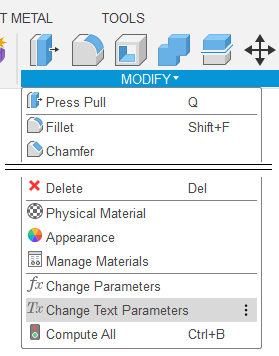
ParametricText is accessed through MODIFY -> Change Text Parameters in the Design workspace and MANAGE -> Change Text Parameters in the Manufacture workspace.
Due to Fusion API limitations, ParametricText is not added to a menu in the Flat pattern environment. As a workaround, you can assign a keyboard shortcut to “Change Text Parameters”.
Parameter Dialog
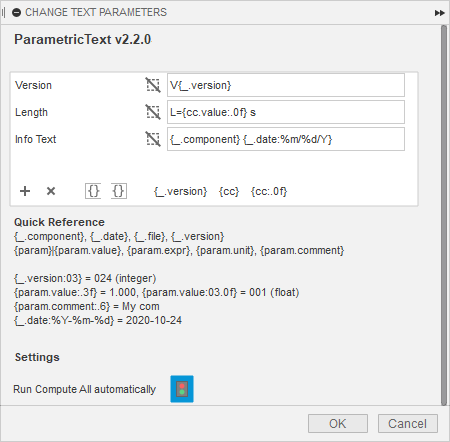
Parameter Table
All text parameters are listed in the parameter table. Each parameter can be assigned to one or more sketch texts.
Use the  and
and  buttons to add and remove rows from the table.
Editing a parameter
Start by selecting the row of the text parameter to edit.
Click on texts on the canvas to select/unselect for use with the
selected text parameter. The names of the sketches will appear on the
row. Use the clear button,  , to clear all selections.
Enter the desired parameter text in the text field. The text can contain values from parameters and the document. See Parameters for details.
Fusion does not support writing curly braces on all international
keyboard layouts.  and
and  can be
used instead, to add curly braces to the beginning and end of the
currently selected text box.
can be
used instead, to add curly braces to the beginning and end of the
currently selected text box.
The various buttons with braces ({…}) allows for quickly inserting parameters.
Import and Export
See Export and Import.
Settings
- Run Compute All automatically
Make ParametricText run Compute All every time text parameters are updated. This can be needed for geometry depending on the texts to be redrawn. Text updates will be slower.
- Troubleshooting mode
Used for troubleshooting bugs. Make ParametricText log its actions and the current sketch states in the Fusion text commands terminal. When enabled, the terminal will open. Press Ctrl+Alt+C to open and close the terminal. Troubleshooting mode can make Fusion run slower.
Disabling ParametricText
The add-in can be temporarily disabled using the Scripts and Add-ins dialog. Press Shift+S in Fusion and go to the Add-Ins tab.