Export and Import
The text parameters saved in a design can be exported to an Excel style CSV file. The CSV file can then be edited in e.g. Excel or Libreoffice Calc and imported back into the design.
Export and Import actions
The following buttons are available in the Parameter Dialog.
 Export
Exports the current text parameters to a CSV file.
CSV Fields: ID, Text, Sketches
 Set text parameters from CSV file
Sets parameter values from an earlier exported and edited CSV file. The ID on each row on the CSV is used to map the text to the corresponding parameter. The IDs can be non-contiguous.
Used CSV fields: ID, Text
 Add texts from CSV file
Adds text parameters from an earlier exported and edited CSV file. No new parameter will be inserted if a text matches an existing text parameter value.
Used CSV fields: Text
CSV format
An example of the CSV file format is shown below. It follows the formatting of CSV files exported from Excel. The first set of lines contain metadata that should not be edited.
 Add-in version,ParametricText v 2.5.0
 File format version,1

 ID,Text,Sketches
 0,V{_.version},Version
 1,"L={cc.value:.0f}, H={h.value}",Dimensions
 2,"""quoted value""",Test value
 3,"Special characters: ,;""",Sketch4,Sketch5
Saving in a spreadsheet application can add extra columns (commas) to unify the column count between the lines. These are ignored by the add-in.
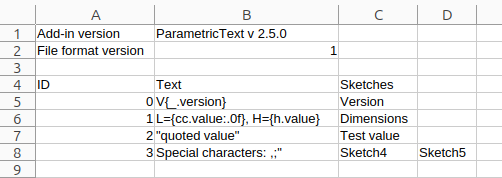
Example of a CSV file opened in Libreoffice Calc.
CSV fields
- ID
A unique identifier for the text parameter used by the add-in to keep track of the text parameters.
- Text
The text of the parameter.
- Sketches
The sketches that are assigned to the text parameter. One column for each assigned sketch.